
|
ChaosDMX
Open-Source DMX-Interface
|
|
|
ChaosDMX
Open-Source DMX-Interface
|
ChaosDMX is an open-source, multi-protocol DIY DMX interface that acts as a versatile bridge between lighting control software (e.g., QLC+) and physical stage equipment like fixtures, spotlights, moving heads, and fog machines. It features two fully configurable ports that can be individually set up as either DMX-Input or DMX-Output. The interface supports Art-Net and sACN / E1.31 and is able to operate over an Ethernet connection or over Wi-Fi.
| Count | Part |
|---|---|
| 1x | ESP32 (Lolin S2 Mini) |
| 2x | RS485 |
| 1x | W5500-ETH |
| 1x | LED-Button |
| 1x | ♂️-XLR-socket |
| 1x | ♀️-XLR-socket |
Additionally, you need:
The following diagram demonstrates how to wire the components together, in the table below you can see how to connect the pinout of the ESP32 with your project.

| GPIO | Usage |
|---|---|
| GND | GND to others |
| 3,3 V | VIN on RS485 |
| 5 V / VBUS | VIN on W5500 |
| 0 | Onboard Button |
| 5 | Ext. Button |
| 7 | Ext. LED |
| 15 | Onboard LED |
| 17 | U1TXD |
| 18 | U1RXD |
| 21 | U0TXD |
| 33 | U0RXD |
| 34 | SPI CS |
| 35 | SPI MOS |
| 36 | SPI SCK |
| 37 | SPI MISO |
All print files can be found in the folder assets/case. Alternatively, you can view the current case on OnShape where you can export the files in a format of your choice. Feel free to design your own case (and maybe address the issues with the current one) and share it with us!
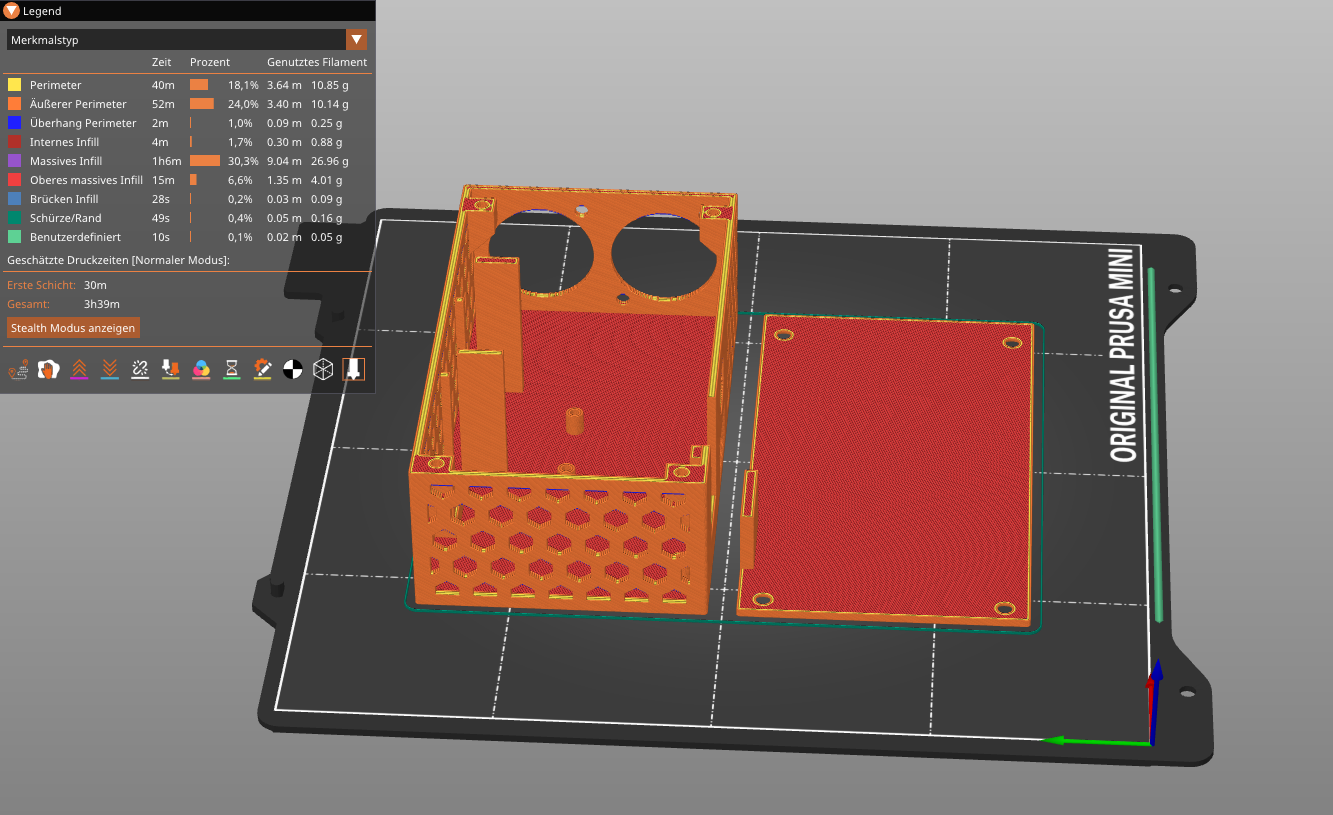
In addition to the print you will need:
| Count | Part | Location |
|---|---|---|
| 6x | M2x5 screw | Case lid, ESP32 |
| 2x | M2.5x5 screw | W5500 |
| 4x | M3 screw | XLR sockets |
| 4x | M3 nut | XLR sockets |
We have a status LED-Button that shows the current state of the device.
| LED | Description |
|---|---|
| no power; LED deactivated |
| powered on; normal |
| startup |
| warning |
| resetting |
| error |
You can configure the device by connecting to the WiFi network and accessing the web interface via the default (listed below) or configured IP address.
To reset the settings, hold down the button and connect the ESP to the power supply, the LED will flash rapidly. After 3 seconds the LED will turn solid and the settings are reset. If you release the button early, you will abort the reset and the LED will flash slowly.
| Setting | Value |
|---|---|
| Type | WiFi AP |
| SSID | ChaosDMX-□□□□ |
| Password | ChaosDMX |
| IP-Address | 192.168.4.1 |
| DMX0 | OUTPUT; Universe 1 |
| DMX1 | INPUT; Universe 2 |
| LED Brightness | 10 % |
We provide a ready-to-use development environment using Nix, but you can also set up the environment manually if you prefer to do so. If you do not want to use Nix make sure to install the required tools listed in the buildInputs section in flake.nix. If you are on Windows we recommend using WSL and following the instructions below inside the WSL session. You might need to install usbipd-win for usage of the usb pass-through
For usage of the development environment, having the nix package manager with flakes-support installed on your system is required. There are two main ways to install the nix package manager on your system.
Have a look at their website, there is a single command to run, after this you may restart the system or log out.
If you want to use the bare nix installer visit nixos.org/download and follow the steps there. When you are done with the installation of nix you need to enable flakes support by adding the following line to your ~/.config/nix/nix.conf:
Optionally, you are able to use direnv to automatically enter the development environment whenever you navigate to the project folder. Further installation instructions can be found on their website.
When using it for the first time, you need to allow the .envrc file by running direnv allow in the project folder. Afterwards, you can simply navigate to the project folder and you will automatically enter the development environment.
This project uses invoke to simplify running common commands. Run inv --list to see all available tasks or have a look at the tasks.py file.
Here is a small selection of the most common tasks:
| Command | Description |
|---|---|
| inv build | Build the firmware using ESP-IDF |
| inv flash | Flash the firmware to the ESP32 |
| inv monitor | Monitor the serial output |
| inv docs -o | Generate the documentation using Doxygen and open it in your browser |
This project uses git-hooks.nix to run code quality, formatting, and consistency checks. When using the dev-shell, these run before your commit and format the code etc. If you are not using the dev-shell, the action runner will do the check on the repository again and check it for you.
Further documentation including data structures and code can be found on hendrikrauh.github.io/dmx-interface. Doxygen is used to generate the documentation from the source code, you can also generate it locally by running inv docs or inv docs -o to open it in your browser after generation. Functions, variables, and data structures should be documented using Doxygen comments, look at the Doxygen manual for more information on how to write these comments.
The documentation for your branch will be automatically generated and published under https://hendrikrauh.github.io/dmx-interface/branch/<your-branch-name> when you push your changes.
We had an issue that the inv flash fails with a protocol error, to fix it we put the ESP in bootloader-mode and flash directly
Contributions, issues, and feature requests are welcome!
Feel free to check the issues page and the pull requests on GitHub. Thanks to all contributors who have helped make this project better!


